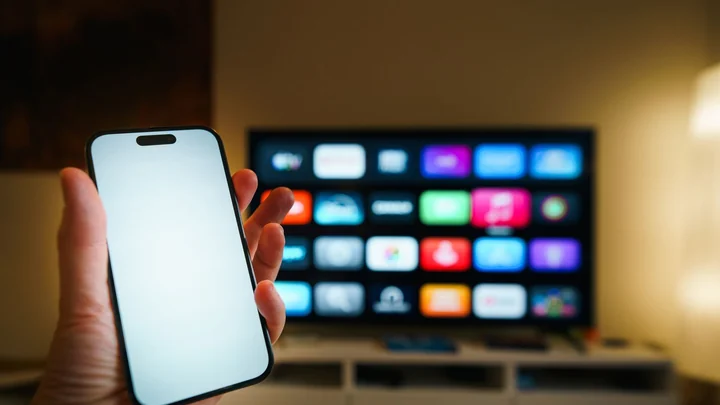
How to Pay for Hotspot WiFi on a Smart TV in Kenya
If you are asking how to pay for WiFi on a smart TV or how to connect a smart TV to hotspot WiFi, the reliable method is to register the TV’s Wi-Fi MAC address from a phone or laptop, choose an internet plan, then connect the TV to the same hotspot network. This avoids the captive-portal problem that stops many TVs from reaching the payment page.
For a Kenyan hotspot operator, TV support makes one connection useful to a whole household. Customers can buy access for a television without keeping a phone hotspot running or calling for manual activation. With Bitwave Technologies, you can let customers register a TV from the captive portal and attach the selected package to that device.
How to pay for hotspot WiFi on a smart TV
To pay for hotspot WiFi on a smart TV, first find the TV’s Wi-Fi MAC address. On a phone or laptop, join the same hotspot, open its captive portal, choose the option for connecting a TV, enter the MAC address, select a package and complete the purchase. Then reconnect the TV to that hotspot.
- Find the TV’s device MAC address. Open the TV settings and locate the network or device-status screen. Write down the address exactly, including every number, letter and colon.
- Join the hotspot from a phone or laptop. Use a device that can open the captive portal and complete the normal login or payment flow.
- Open the TV-registration option. On a Bitwave Technologies portal, choose Connect your TV device instead of buying access for the phone itself.
- Enter the MAC address. Paste or type the TV’s address into the MAC address field. Select TV as the device type and add an optional name such as “Living room TV” if the portal requests one.
- Choose the television’s plan. Select the speed and duration that suit the TV, then complete the portal’s purchase or voucher flow.
- Connect or reconnect the TV. Select the same hotspot WiFi name on the television. If it was already connected but still shows no internet, disconnect and reconnect so the hotspot starts a fresh session.
A MAC address normally contains six pairs of letters or numbers separated by colons, such as AA:BB:CC:DD:EE:FF. Treat it like a device identifier: copy it carefully, but do not publish a real customer’s address in screenshots or support messages.
Why does a smart TV get stuck on a captive portal?
A smart TV may join the WiFi signal but remain offline because hotspot access is not granted until the captive portal is completed. Phones usually open that page automatically. Many televisions do not launch it reliably, provide a limited browser, or make payment forms difficult to use with a remote control.
The TV-registration method moves the interactive work to a phone or laptop. The customer uses a normal browser to enter the television’s identifier and select a plan. The network can then recognise the television when it connects, so the TV itself does not need to display the captive portal.
This distinction helps with support. “Connected to WiFi” only confirms that the television can reach the access point. It does not necessarily mean the hotspot has authorised that device for internet access.
Where do you find the MAC address on a smart TV?
On many TCL Google TVs, open Settings → System → About → Status, then copy Device MAC Address. Menu wording varies between television brands and software versions, so look under Network, About, Status or Device Information if that exact route is unavailable. Use the Wi-Fi device address for a wireless connection.
Do not copy the IP address, serial number or Bluetooth address. They identify different things and will not match the TV’s WiFi connection. Some televisions display separate wired and wireless MAC addresses; use the wireless address when the TV connects by WiFi and the Ethernet address only when it uses a cable.
How does MAC-address registration give the TV internet access?
MAC-address registration links the television’s network identifier to the package selected on the captive portal. When that same device joins the hotspot, the billing and access system can recognise it and apply the authorised plan without asking the TV to complete a browser-based login.
The plan still controls the access period and speed offered by the operator. Registering the device does not create unlimited access; it simply gives a browser-limited device a practical way to use the same paid hotspot flow as a phone. The phone or laptop is used for registration, while the television uses its own connection afterwards.
What should you check when the TV still has no internet?
When a registered TV remains offline, verify the MAC address, hotspot name and package status first. Most failures come from copying the Bluetooth or wired address, entering one character incorrectly, registering the TV on one hotspot while connecting it to another, or leaving an old WiFi session active after the plan was applied.
Work through these checks in order:
- Compare the portal entry with the TV’s Device MAC Address one pair at a time.
- Confirm the TV and the phone used for registration selected the intended hotspot.
- Check that the television’s package was applied and is still active.
- Turn the TV’s WiFi off and on, or forget the network and join it again.
- If the TV has both Ethernet and WiFi addresses, register the one for the connection currently in use.
- If several devices fail at once, ask the operator to check the access point, MikroTik router and upstream internet rather than repeating the TV setup.
Avoid repeatedly buying plans while troubleshooting. Confirm whether the first plan is active before starting another payment.
How should a hotspot operator support smart TVs?
A hotspot operator should provide a separate TV or device-registration path on the captive portal, explain where customers can find a MAC address, validate the address before accepting it, and show the selected device and plan clearly. This reduces manual activation calls and prevents customers from entering Bluetooth, IP or serial-number values.
Keep the customer instructions short enough to follow from a phone:
- Find the television’s Wi-Fi MAC address.
- Join the hotspot on the phone.
- Tap Connect your TV device.
- Enter the address and choose a plan.
- Reconnect the television.
TV access is especially useful in apartments, hostels, furnished rentals and shared compounds where the hotspot is the household’s main internet source. If you are planning the wider network, read how to start a WiFi hotspot business in Kenya for the MikroTik, access-point, power and M-Pesa basics.
Before changing your package list, test the complete flow on at least one real television and one phone. Check that the address is accepted, the plan appears correctly, the TV reconnects and internet access ends when the plan expires. You can also review Bitwave Technologies pricing for your hotspot size before rolling the feature out.
FAQ
How do I buy WiFi for my smart TV if it can't open the payment page?
Pay from your phone instead. Join the same hotspot on the phone, open the captive portal, choose the option for connecting a TV, enter the TV's Wi-Fi MAC address and pay for the plan. Then reconnect the TV. The plan is attached to the TV, so the TV never has to load the payment page itself.
Can a smart TV open a hotspot captive portal by itself?
Some smart TVs can open simple captive portals, but many fail to launch the page or cannot complete payment forms reliably. Registering the TV’s Wi-Fi MAC address from a phone or laptop lets the hotspot authorise the television without depending on the TV’s browser.
Is a TV MAC address the same as its IP or Bluetooth address?
No. A MAC address identifies a particular network interface, while an IP address is assigned on the network and may change. A Bluetooth address belongs to the Bluetooth interface. For hotspot WiFi, use the television’s Wi-Fi or Device MAC Address.
Does the phone need to stay connected after registering the TV?
No. The phone or laptop is only used to open the captive portal, enter the TV’s MAC address and select the plan. After registration, the television connects with its own WiFi interface and uses the package assigned to that device.
Smart-TV support removes a small but frustrating barrier between a customer and a paid connection. Create a free Bitwave Technologies account to give customers a clear portal flow for registering TVs and other devices that cannot handle a normal hotspot login.
Running an internet business in Kenya?
Bitwave automates billing for 200+ ISP networks: M-Pesa payments, hotspot vouchers, PPPoE and MikroTik management in one dashboard.
Start free