ISP Billing System Demo: 7 Things to Test Before You Pay
An ISP billing system demo lets you click through the software with sample data before you pay for it or connect a router. Test it before you buy any system. You'll run your hotspot or PPPoE business from those screens every day, so judge them yourself instead of relying on a sales pitch or a feature list.
You can open the live Bitwave demo right now, with no signup. Keep it open in another tab and work through the seven checks below. They apply to any billing system you're considering.
This post is based on our TikTok on testing the demo before you buy.
Why test an ISP billing system demo before you buy?
A demo shows you how hard the daily work will be, which a feature list can't do. Two systems can both list M-Pesa, vouchers and MikroTik support, yet one takes three taps to find a customer and the other takes ten. You only notice that difference by using them.
Switching later costs more than an hour of testing now. You'd have to re-provision your router, move your customers across and learn a new dashboard. If you're still drawing up a shortlist, start with our comparison of ISP billing systems in Kenya, then demo the two you like best.
What should you test in an ISP billing system demo?
Test the seven screens you'll use most: dashboard, customers, transactions, vouchers, plans, routers and the login page. On each one, ask a question from your real working day. If you can't find the answer within a minute or so, a stressed version of you won't find it at 9 PM either.
| Screen | The question to answer | Where it is in the Bitwave demo |
|---|---|---|
| Dashboard | How much did I make today, and from which package? | Revenue, transactions, unique customers, Plan Performance |
| Customers | Who is online right now, and who has expired? | Filters for Hotspot, PPPoE, Static IP, Active, Online, Overdue |
| Transactions | Where did each M-Pesa payment go? | Monthly hotspot and PPPoE revenue, with each payment's reference |
| Vouchers | Can I see which codes are used and which are still unsold? | Available, Used and Disabled counts, with Copy and Disable on each code |
| Plans | Can I set the speed, price and time of a package? | Download and upload speed, KES price, duration, hotspot or PPPoE |
| Routers | Which site is down, and why? | Online and offline status, plus Diagnostics for ports, PPPoE and hotspot |
| Login page | Can I make the page customers see look like my business? | Portal Configuration: colour themes, header layout, welcome message |
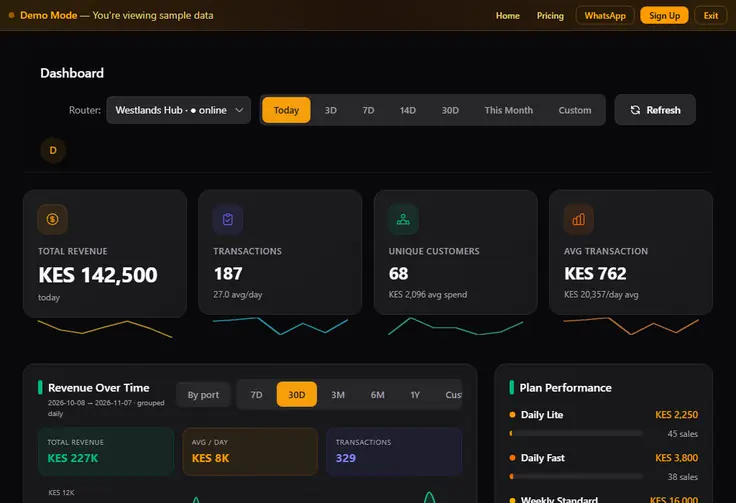
The Bitwave demo dashboard. Every figure and customer in it is sample data.
Run the checks on your phone too
Many operators check their business from a phone, not a laptop. Open the demo on the phone you actually use and try the same questions. Check that tables stay readable, that buttons are big enough to tap, and that you can reach customers and transactions quickly. A dashboard that only works on a wide screen will frustrate you the first time something breaks while you're out.
Try the awkward moments, not just the happy ones
Sales demos show a good day, so go looking for the bad one. Find a router marked offline and see what the system tells you about it. Look for a customer who says they paid but has no internet, then work out where you'd check that payment. In the Bitwave demo, South-B Relay shows up as an offline router, and there's a separate Unmatched Payments page for money that didn't match a customer.
What can't an ISP billing system demo tell you?
A demo can't prove three things: that real M-Pesa payments activate customers, that the system works on your own router, and that support answers when something goes wrong. It runs on sample data, so test these separately before you commit your customers to any system.
Real payments. Set up a very cheap package on your own hotspot and buy it yourself. We timed a KSh 1 M-Pesa WiFi purchase at about 30 seconds from choosing the package to getting online. Time yours, and check that the payment shows up in your dashboard.
Your own router. Ask how the system configures your MikroTik, and how long that takes. Our MikroTik hotspot setup walkthrough shows what one-command provisioning looks like on a hAP lite. Try it on a spare router first if you already have paying customers.
Support. Call or message the vendor outside office hours, before you've paid. The response you get as a prospect tells you a lot about the response you'd get as a customer.
How do you use the Bitwave demo?
Go to bitwavetechnologies.com/demo and the dashboard opens with sample data. You don't need an account, an M-Pesa number or a router. A Demo Mode banner stays at the top of the page, so you always know you're looking at sample data.
The demo includes three sample routers (Kilimani Tower, Westlands Hub and South-B Relay), and you can switch between them. The sample network has hotspot and PPPoE customers, M-Pesa transactions, vouchers and eight plans. You can open and explore the menus, but actions that would change anything are blocked with a message.
Everything else in the sidebar is open to explore too, including Messaging, Outage Compensation, Staff and Ads. When you're ready to try it on your own network, create a free Bitwave account and connect your MikroTik.
How much does Bitwave cost after the demo?
Bitwave charges 3% of hotspot revenue, or KES 25 per active PPPoE user per month, with a KES 500 monthly minimum. There is no setup fee, and installation and MikroTik configuration are free. You can work out your monthly bill with the pricing calculator using your own revenue and customer numbers.
For a fuller look at what's included, see the Bitwave WiFi billing system page.
FAQ
Is the Bitwave ISP billing system demo free? Yes. The Bitwave demo is free and opens at bitwavetechnologies.com/demo without an account, a phone number or a router. It shows sample data, so nothing you see belongs to a real customer.
Can I connect my own MikroTik router to the demo? No. The demo runs on sample routers and blocks actions that would change anything. To use your own MikroTik, create a free Bitwave account and add the router there. There is no setup fee.
What should I look for in a hotspot billing system demo? Check that you can see today's revenue, find a customer, trace an M-Pesa payment, manage vouchers, change a package and see which router is offline. Do it on your phone as well as a laptop, because that's where many operators run their business.
Running an internet business in Kenya?
Bitwave automates billing for 200+ ISP networks: M-Pesa payments, hotspot vouchers, PPPoE and MikroTik management in one dashboard.